Workflows
Control your process, not just your documents
Before a drawing can go to the construction site, it has to pass the structural engineer, the project manager and sometimes the client. With workflows you set that route once: who does what, in what order, and what happens when someone approves or rejects a document. That might be a review, but also a task, a submission by a subcontractor or a step Prostream carries out itself, such as adding a QR stamp or finalising documents. Upload a document and the workflow starts automatically, giving everyone a task at the right moment. Subcontractors submit files without a Prostream account. In your folders you see at a glance which documents are in a workflow, and for each document which step it’s in. That way, only approved drawings reach the site.

An approval doesn’t belong in an email
A drawing is ready for review. The structural engineer gets it by email, the project manager hears on Teams that it’s on its way, and when the deadline passes, there’s a phone call. Meanwhile the subcontractor sends an addition to someone who’s on holiday. It gets forwarded and ends up in the wrong folder. Eventually the approval comes through. But afterwards, nobody can prove who gave it, when, or on which version. And on the next project, the same story starts all over again.
Workflows in Prostream change that, without you having to change the way you work. You define how things should go, and Prostream makes sure the document follows that route. Your colleagues see their task in Prostream. Anyone without an account, such as a subcontractor, submits files via a secure link.
You build the process, Prostream does the rest
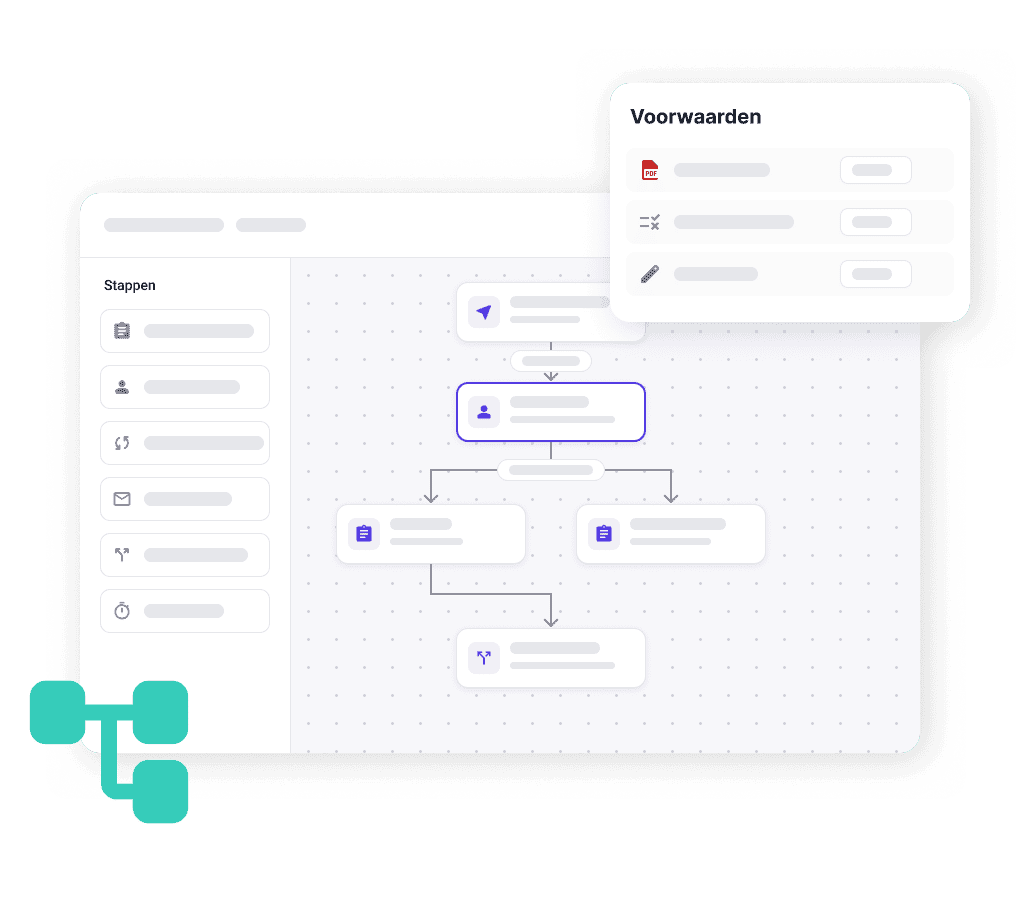
Build the process yourself, no developer needed
You build the process in a visual designer, using fixed building blocks: a review (approve or reject), a task, an upload by an external party, steps that run in parallel, and a waiting period, handy for an objection period.
Want Prostream to carry out a step itself? Then it can, for example, automatically add a QR stamp or finalise documents. Make the route depend on the outcome of the previous step, the file type or metadata.
You can use one workflow design across multiple folders and projects, and assign different people to the steps in each project.
Starts automatically, not because someone remembers
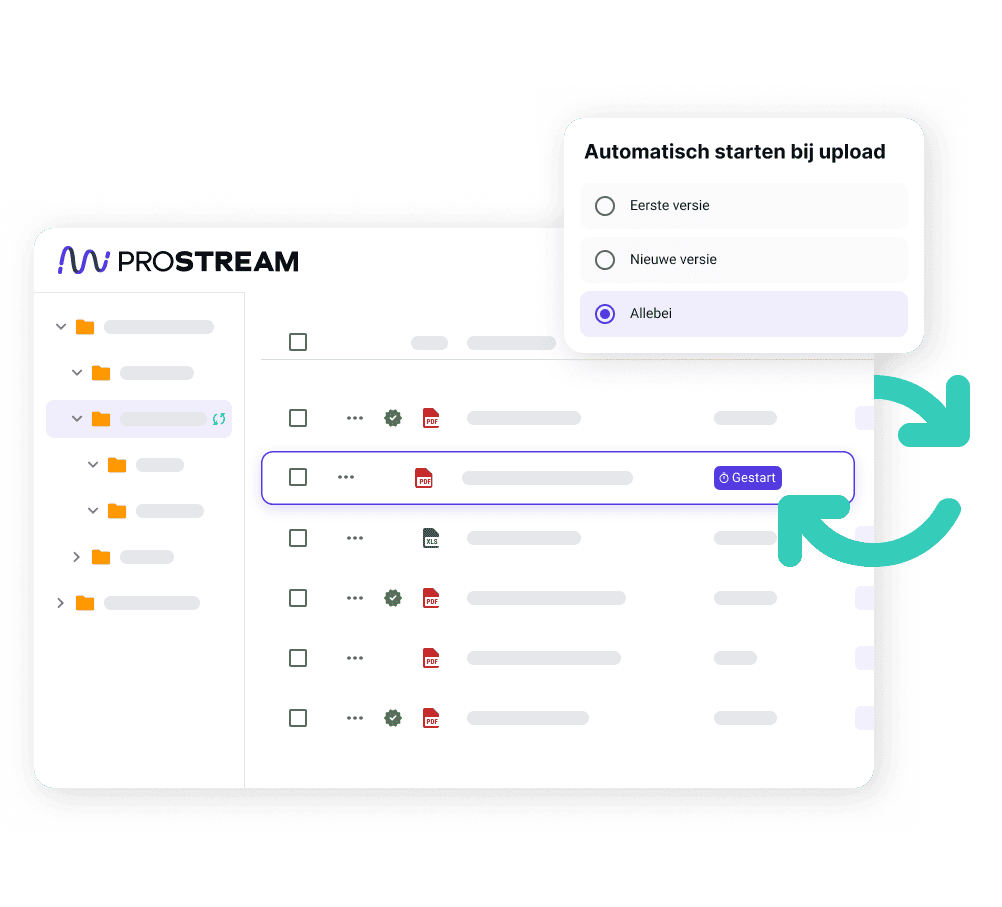
Link a workflow to a folder, or to a metadata template. It then applies to every folder that uses that template. Upload a document to one of those folders and the workflow starts automatically: on the first version, on a new version, or both. You decide. When you upload, you see which workflow will start. One click shows you the entire route.
Uploading ten documents at once? Choose whether they’re reviewed together or one by one. Prefer to do it manually? Select the documents and start the workflow yourself.
Subcontractors and clients simply take part
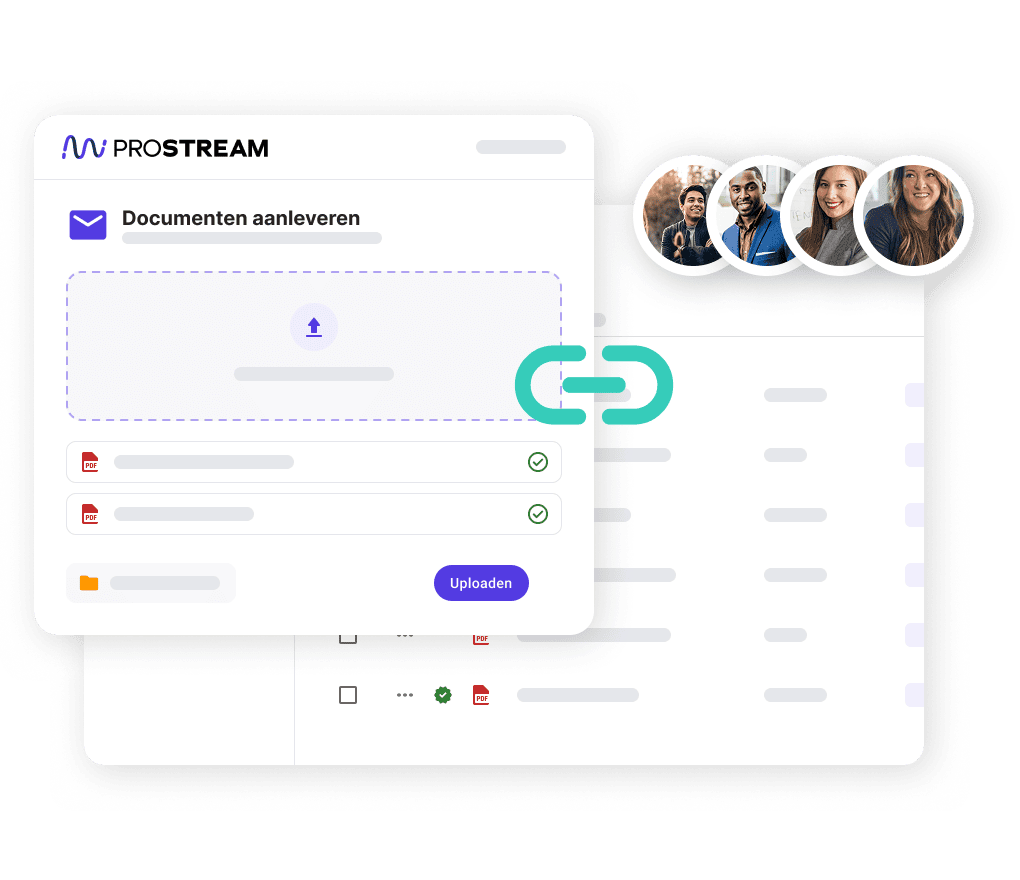
Sometimes the ball is in someone else’s court, outside your organisation. You need revised drawings from the structural engineer, or additional documents from a subcontractor. For that, you add an upload step to your workflow. When the workflow reaches that step, the external party automatically receives a secure link by email, together with your instructions. No account or licence needed.
Whatever they upload goes straight into the folder you chose and is immediately part of the workflow. The process then simply continues, for example with a colleague who checks the submission. Something not right? Send the workflow back to the upload step. The link works once and is valid for 7 days by default.
Deadlines that keep watch themselves
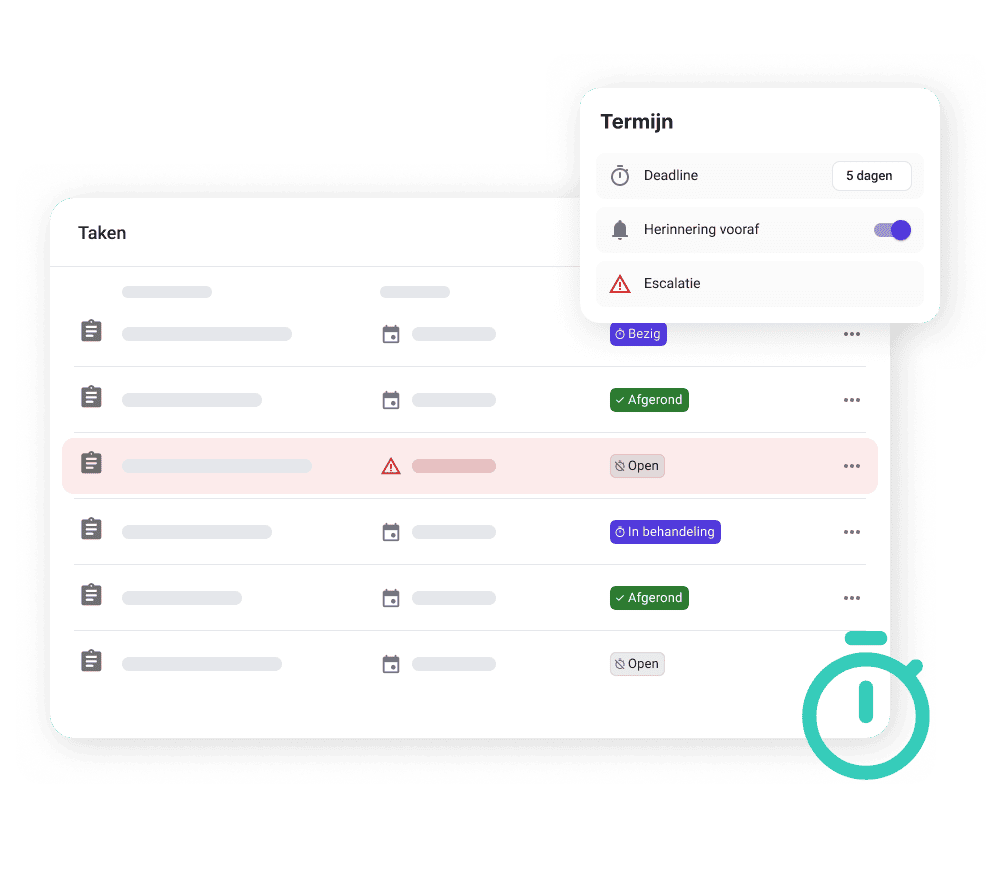
A workflow gets stuck at the step where someone forgets to respond. That’s why every step has its own deadline. Whoever’s turn it is sees the task in Prostream and gets a reminder before the deadline expires. If nothing happens, the step escalates. You choose how: by email, with a task, or both. You can also set a deadline for the whole workflow, so you keep an eye on the total as well.
If someone is on holiday, a project administrator hands the step over to a colleague. If several people are assigned to a step, you choose whether one response is enough or everyone has to respond.
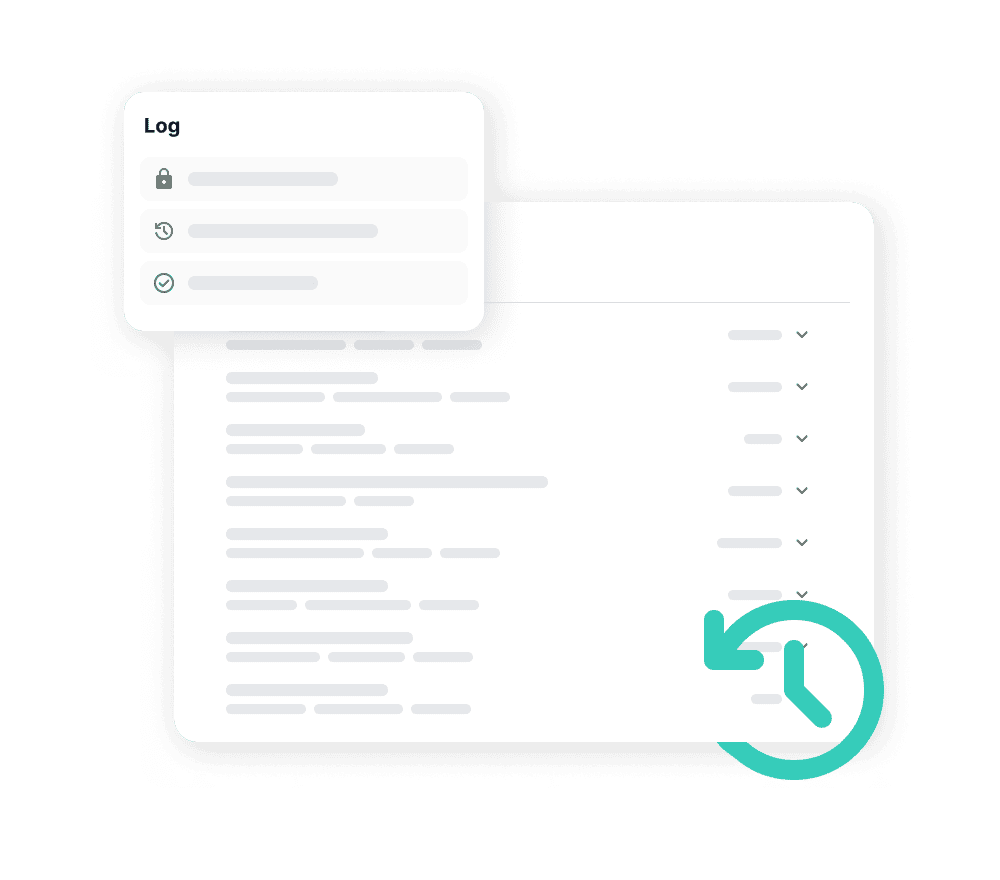
An audit trail you can show an auditor right away
At handover, the client asks who approved that drawing back then, and which version it was. That’s not the moment you want to be digging through your inbox.
From start to finish, Prostream records everything: who approved, rejected or completed what, which steps ran automatically and which version went through the workflow. You see it per document and per version. That helps during a quality audit, or if a dispute comes up later.
Want to be sure the approved version won’t change any more? Lock the document in a step. Then nobody can upload a new version over it.
How it works

Build the steps in the designer and publish the workflow.

Link it to a folder or template, or start it manually from a selection of documents.

Everyone whose turn it is sees their task in My tasks or gets an email, with a deadline.

Track progress per document, from the first step to completion.
Frequently asked questions
What’s the difference between workflows and document tasks?
A document task is a single task you link to one or more documents, for example for review or for information. A workflow connects tasks like these into a complete route, with conditions, deadlines and a fixed way back if something is rejected.
What’s the difference between a review and a task?
A review has two outcomes: approve or reject. For each outcome, you decide how the workflow continues. A task is something you complete, after which the workflow moves on to the next step. Still want to be able to choose between continuing or going back after a task? Then make the route depend on a metadata field.
Does this also work with subcontractors who don’t have a Prostream licence?
Yes. They receive a secure link by email and upload without an account. Whatever they submit goes straight into the folder you chose.
What happens if someone uploads a new version during the workflow?
You set that per workflow. If you choose the latest version, the next step continues with the new upload. If you choose the current version, the version the workflow started with stays in it. If you lock the document in a step, nobody can upload a new version.
Can I approve each document separately within one workflow?
Yes, if you have the workflow start per document. Each document then gets its own workflow and its own review. If documents share one workflow, the review applies to all of them.
Can a document be in several workflows at the same time?
Yes, as long as they are different workflows. The document’s sidebar shows all of them, along with the step the document is in.
What if I make a mistake while building a workflow?
You’ll see it straight away. If something in the workflow isn’t right, the system points out exactly which step, for example when you haven’t entered an email address for an external upload. As long as there’s an error, you can’t publish the workflow.
What happens to a running process if I change the workflow design?
Nothing. Changes only apply to workflows that haven’t started yet. A running workflow finishes on the version it started with. Once a design has been used, you can archive it, but you can no longer delete it.
Can I stop a process if it’s no longer relevant?
An administrator can cancel a running process. Anything already done, such as an approval or a move, is not reversed, but open work and deadlines stop immediately.
Set the route once, and everyone knows what to do
Workflows will soon be available in Prostream. Sign up to be one of the first projects to try it.
THAT’S NOT ALL.
Making collaboration
a piece of cake.

Prostream API
With the Prostream API, easily connect your systems and automate workflows. Create customised solutions that grow with your business.

Projects
With projects in Prostream, you keep a grip on all your projects. Collaborate with internal colleagues and external partners, without the hassle of loose documents or scattered information.

QR Stamps
With this 'stamp function' you can easily check whether you have the correct version of, for example, construction drawings with you.

Pro4all BIM Compass in Prostream
Try Pro4all BIM Compass in Prostream for free until November 30.